Opening the Composer
Click New Post in the sidebar. If you have an in-progress draft, Hivra will restore it automatically so you can pick up where you left off.Selecting connected accounts
In the Posting To section, Hivra displays a tile for every connected account in your workspace. Toggle the tiles for the platforms you want to target — YouTube, Instagram, TikTok, Facebook, X, and Threads.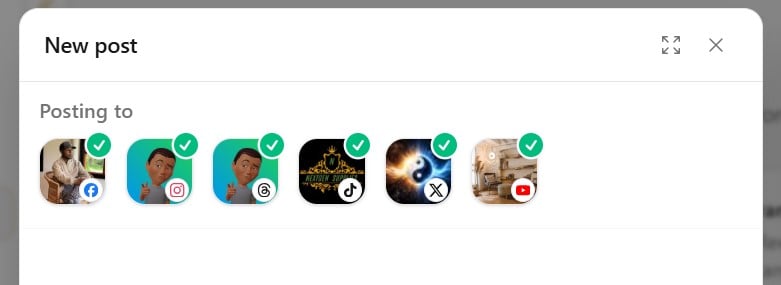
Uploading video files
Drag one or more MP4 or MOV files into the Composer, or click the upload area to open a file picker. Each file you drop is added to the upload dock — the progress strip at the bottom of the screen that shows transcode and upload status for every file in the current session.If a file fails to transcode, check that it uses a supported codec. MP4 (H.264) and MOV are the recommended formats for all platforms.
Importing from cloud storage
Below the upload box, the Or Import From: row lets you import media directly from Google Drive, Dropbox, or OneDrive without downloading files to your computer first.1
Choose a cloud provider
Click Google Drive, Dropbox, or OneDrive in the Or Import From: row.
2
Sign in and authorize access
Sign in to your cloud account in the window or popup that opens, and grant permission to access your files.
3
Select your media
Browse and select the files you want to import. You can select up to 10 files at once (MP4, MOV, JPG, PNG, or WebP), up to 950 MB each.
4
Import to the upload dock
Hivra downloads the files in your browser — displaying progress and a Cancel button — and automatically adds them to the upload dock to begin processing.
OneDrive import supports personal Microsoft accounts.
Writing captions
Baseline caption
Type your caption in the main text field. This becomes the default caption that every selected platform inherits. Use it for copy that works everywhere, then override it per platform where needed.Per-platform caption overrides
Expand any platform drawer to write a caption that applies only to that destination. Platform-specific captions replace the baseline caption for that platform; other platforms are not affected.Saved hashtags
The Saved Hashtags button () in the caption toolbar lets you insert pre-built hashtag sets with a single click — useful for saving favorite hashtags and reusing them across composer sessions.Emoji picker
Click the emoji icon () in the caption toolbar to open the emoji picker and insert an emoji at the cursor position. The picker works in both the baseline caption field and individual platform caption fields.AI Captions
The AI Captions button sits above the caption field and opens a panel that writes captions for you.1
Describe your post
Type a short description of what your post is about in the AI Captions panel, then choose a tone (Friendly, Funny, Inspirational, Professional, Bold, or Educational) and a length, and toggle whether to include emojis, hashtags, and a call to action.
2
Generate
Click Generate. Hivra returns three caption options for your shared, all-platform caption. Click any option to apply it to the baseline caption field, or Undo to restore what was there before.
3
Customize per account
Select specific connected accounts in the panel to also generate a caption tailored to each platform’s style and character limit. For a YouTube account, this generates both a video title and a description.
4
Apply or regenerate
Apply each per-account caption individually, or apply all of them at once. If a result doesn’t work for you, regenerate that account’s caption without starting over.
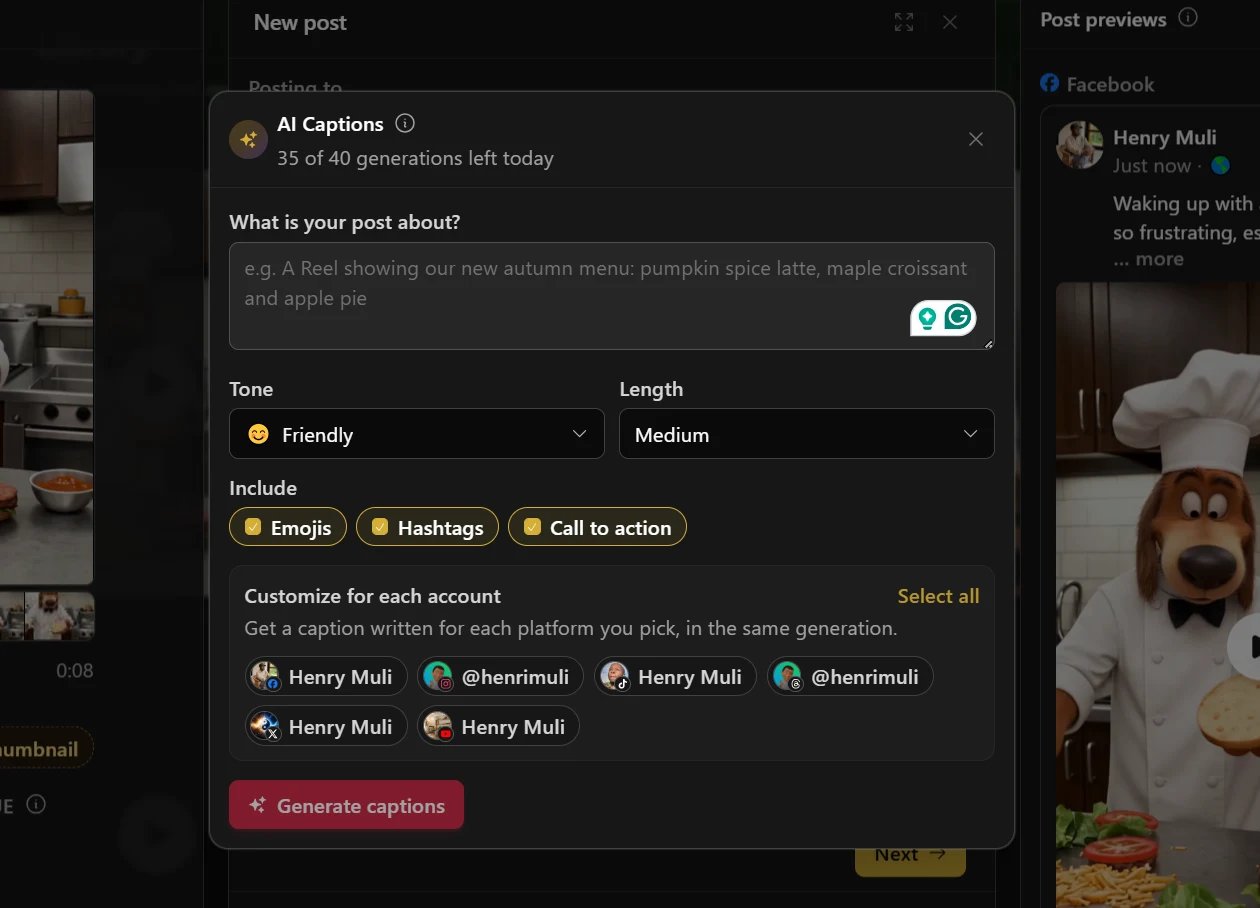
AI Captions generations are limited per day and reset every day at midnight UTC. The Free plan includes 5 generations a day, Creator includes 20, and Business includes 40.
Thumbnail selection
The thumbnail rail on the left of the composer allows you to set a thumbnail for your video.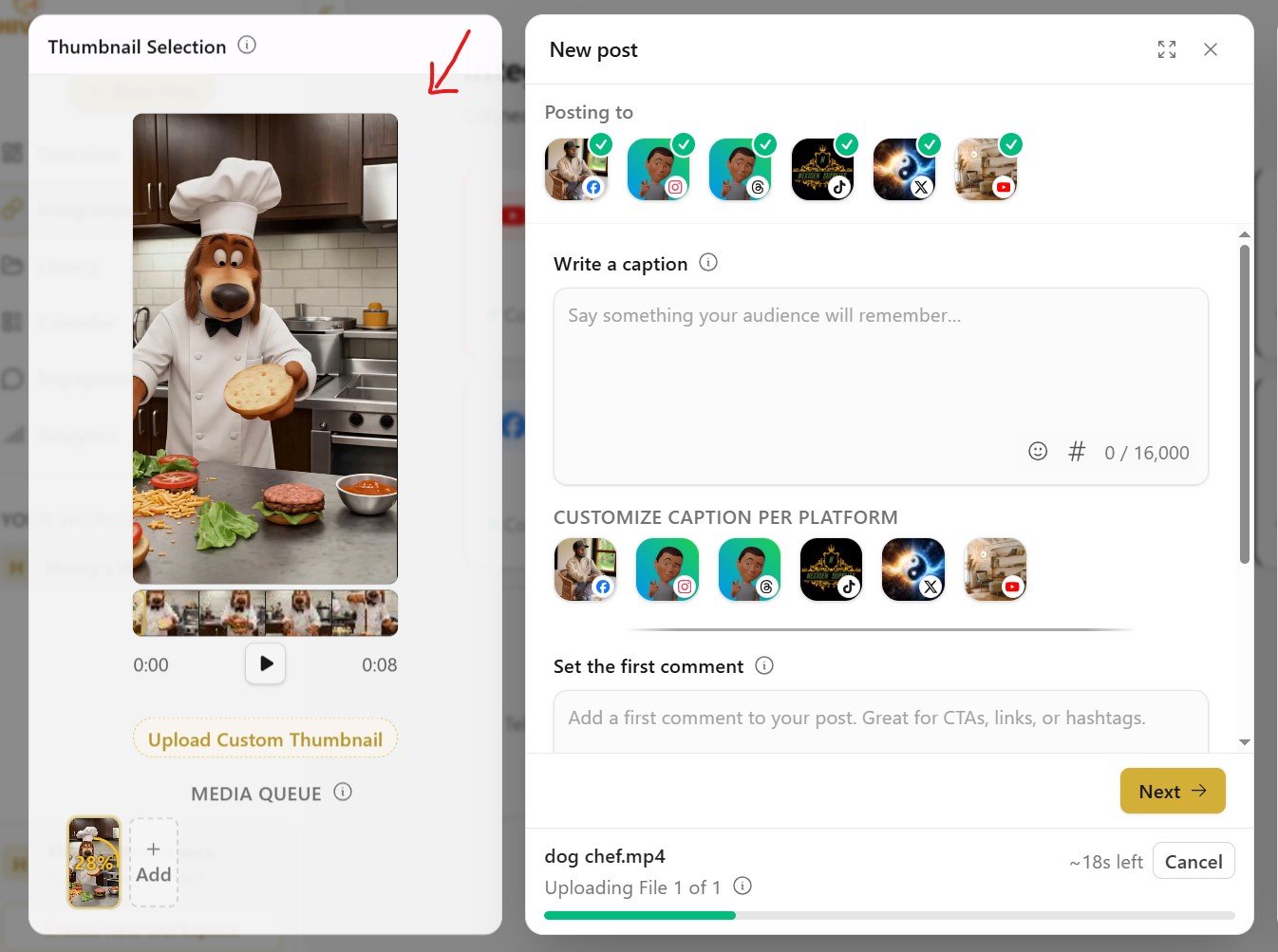
- Let Hivra use the video’s first frame as the default cover.
- Scrub through the video’s timeline to pick a specific frame.
- Upload a custom image to use as the thumbnail.
Editing your video or image
Hover over the selected media above the thumbnail rail and click the Edit Video (or Edit Image) pill that appears over the frame. This opens Hivra’s built-in media editor, where you can crop to a platform aspect ratio, adjust colors, trim or cut parts of a video, add text overlays, and generate auto-captions — all without leaving the Composer. When you finish editing, the edited file replaces your original upload for this post.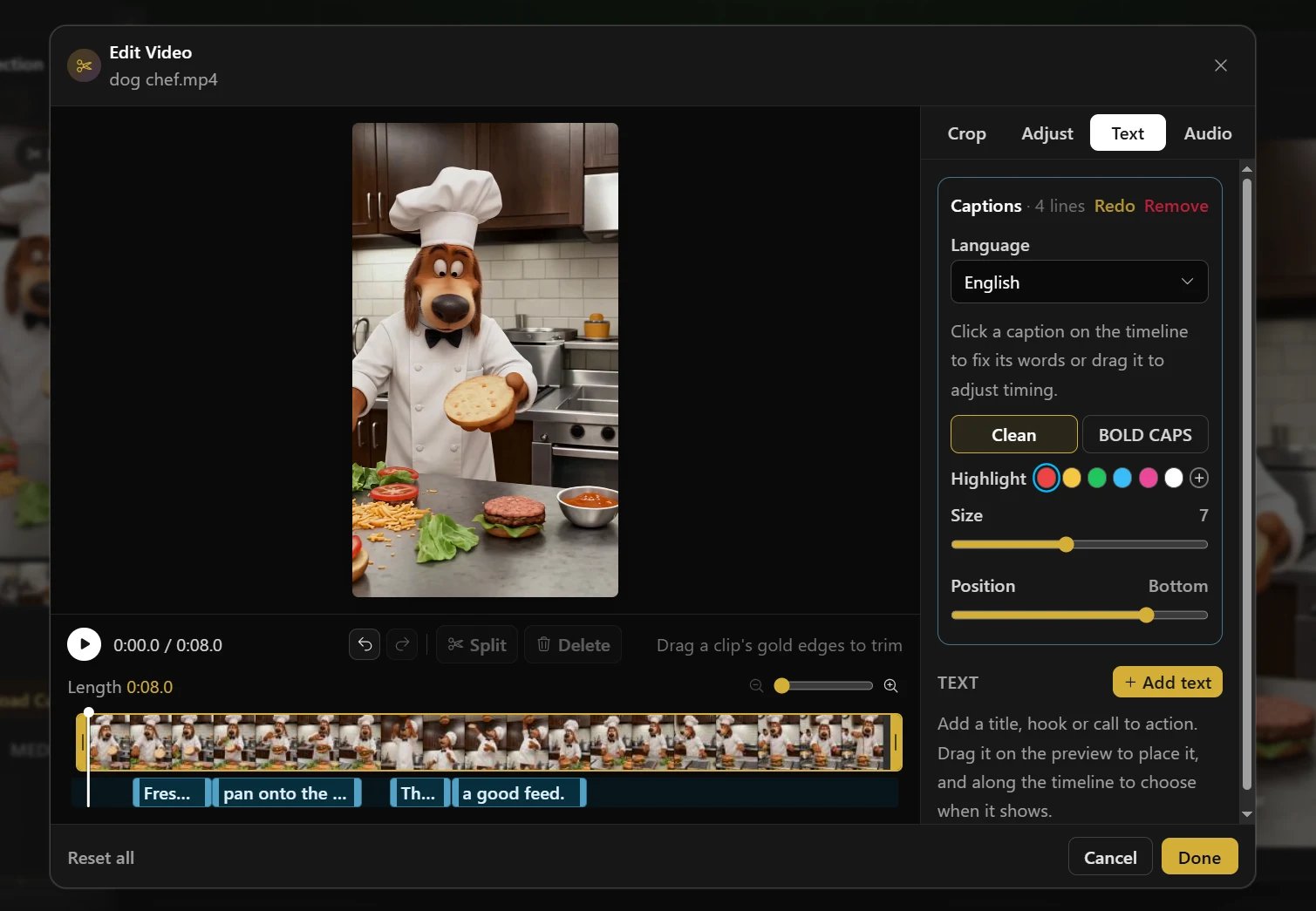
On the Free plan, videos and images you edit carry a small Hivra watermark. Upgrade to Creator or Business to edit without a watermark.
Platform-specific settings
Open any platform drawer to access settings that apply only to that platform:TikTok
TikTok
Set visibility, configure interaction controls (comments, duets, stitch), and toggle the disclosure switch to mark your video as containing paid promotion or branded content, as required by TikTok’s guidelines. Failing to disclose when required may result in TikTok restricting the post.
YouTube
YouTube
Set the video’s title (Required), configure visibility (public, unlisted, etc.), and optionally assign the video to one or more playlists from the YouTube settings modal. The playlist list pulls from your connected YouTube channel, so you need an active YouTube connection for this option to appear. You may also disclose if your video is intended for kids, as required by YouTube.You can also set the title from the Title & description for YouTube modal — click the YouTube tile in the Customize Caption Per Platform section to edit the title alongside the description in one place.
Instagram
Add collaborators and tag people from the Instagram modal. Invited collaborators must accept before they appear as co-authors on the published Reel.
Threads
Threads
Set the reply audience — choose who can reply to the post (everyone, accounts you follow, or mentioned accounts only).
Facebook
Choose whether to publish as a regular Reel or as a Facebook Story format. The Story format has different aspect ratio and duration constraints, so make sure your video is sized appropriately.
X
X
Set who can reply to your post on X (everyone, accounts you follow, etc.).
Choosing a publish mode
At the last step of the Composer, choose one of three actions:- Publish now
- Schedule
- Submit for approval
Click Publish now to send the job to every selected platform immediately. Hivra begins publishing as soon as you confirm. You can watch progress in the upload dock and then track the final status in the Library.