Enrollment is open to any Hivra account, including the Free plan. You don’t need to be a paying subscriber to become an affiliate.
What you earn
Commissions are calculated on the plan subtotal your referral actually pays. If their first payment includes the 30% new-customer discount, that month’s commission is based on the discounted amount rather than the full price.
Enrolling in the affiliate program
1
Find the Earn $200 button
Look for the Earn 200 button in the top bar of your dashboard. If you haven’t dismissed it, a popover may also appear below the button prompting you to Refer a friend and get paid — click Get 200 there, or click Not Now to dismiss it.
2
Review the program terms
Clicking the button opens the Invite Your Friends and Get Paid! dialog, which summarizes the commission rate, lifetime cap, referral discount, attribution window, payout hold, and minimum payout, along with a note that self-referrals and abuse are blocked and that commissions may be reversed on refunds.
3
Accept the terms
Click Accept Terms. Hivra generates your unique affiliate code and takes you straight to your new Affiliate dashboard.
Your affiliate dashboard
The Affiliate dashboard (reached from the Affiliates button, or at Dashboard → Affiliates) is organized into three sections: Overview, Referrals, and Commissions.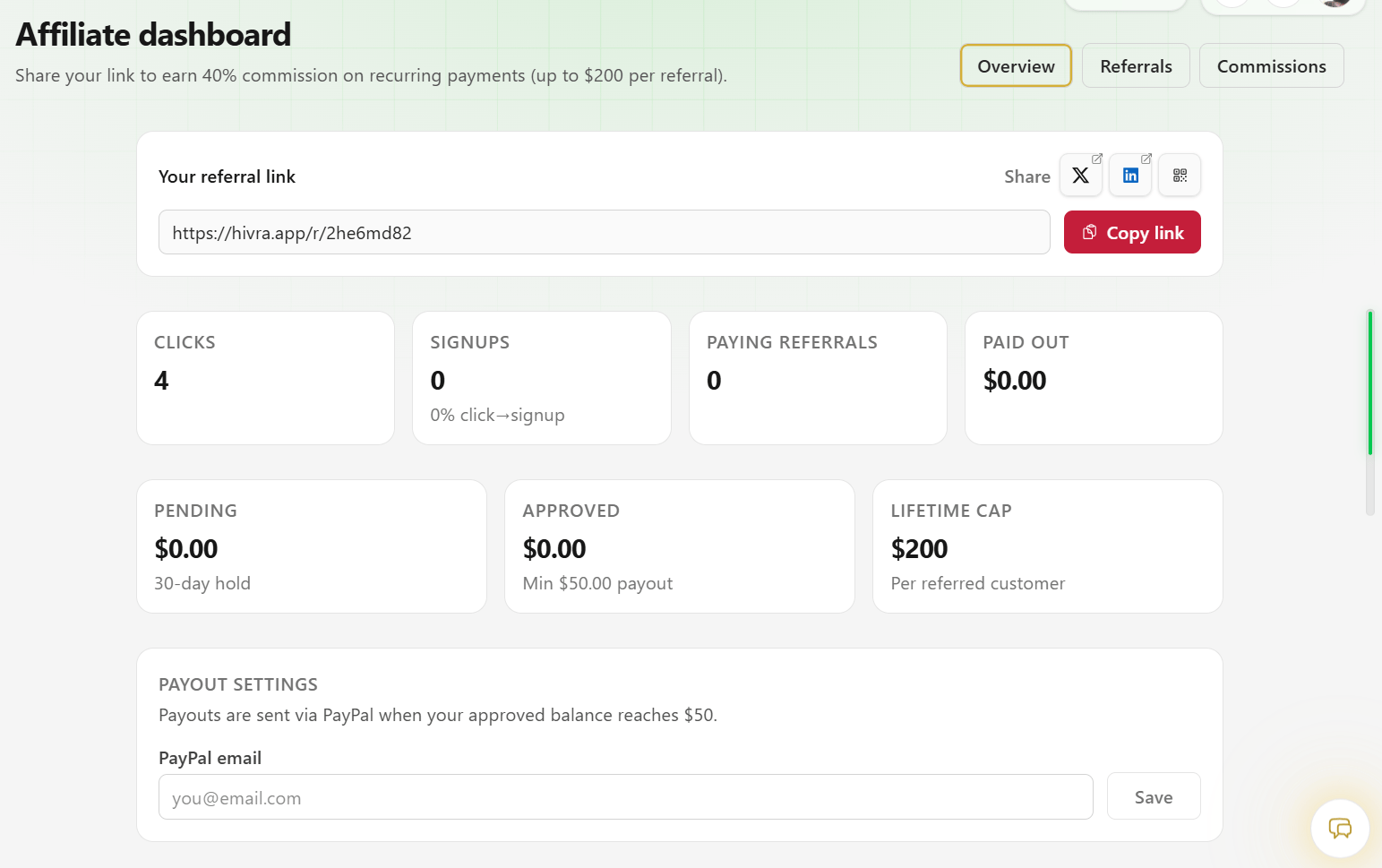
Overview
The Overview section is your home base. At the top, you’ll find your referral link with a Copy link button and quick share icons for X, LinkedIn, and a QR code you can display or scan. Below the link, stat cards summarize your performance:- Clicks — total visits to your referral link.
- Signups — how many of those clicks turned into a Hivra account, plus your click-to-signup conversion rate.
- Paying referrals — how many of your referrals became paying subscribers.
- Paid out — total commissions paid to you so far.
- Pending — commissions still in their 30-day hold.
- Approved — commissions that have cleared the hold and are waiting for your next payout.
- Lifetime cap — the $200 maximum commission per referred customer.
Payout settings
In the Payout settings card, enter the PayPal email you want payouts sent to and click Save. Payouts are sent automatically once your approved balance reaches the $50 minimum.Notification settings
The Notification settings card lets you control how you’re notified about affiliate activity:- New referral — when someone signs up using your affiliate link.
- Commission approved — when a commission clears the 30-day hold and is ready for payout.
- Payout sent — when an approved balance is paid out to your PayPal account.
Payout history
Once you’ve received at least one payout, a Payout history table appears at the bottom of the Overview section, listing the amount, PayPal address, status, and date of each payout.Referrals
The Referrals tab lists everyone attributed to your link, with their current status, how much you’ve earned from them so far, and how much of the $200 lifetime cap remains for that referral. The list is paginated as your referral count grows.Commissions
The Commissions tab lists every individual commission you’ve earned, with the amount, the referral’s plan tier and billing period, its status (pending, approved, or paid), and the date it was created. This list is also paginated.How commissions and payouts work
1
Someone clicks your link
Your referral link (in the form
hivra.app/r/yourcode) sets a 90-day attribution cookie in their browser. If they sign up any time within that window, they’re linked to you as your referral.2
They subscribe to a paid plan
When your referral upgrades to Creator or Business, they automatically receive 30% off their first month’s payment, and a commission is created for you.
3
The commission is held for 30 days
New commissions start in Pending status while Hivra confirms the payment is not refunded or disputed.
4
The commission is approved
After 30 days, the commission moves to Approved status and is added to your payout balance.
5
You get paid via PayPal
Once your approved balance reaches $50, Hivra sends a payout to the PayPal email on file, and the commission moves to Paid.