AI Captions is available on every plan, including Free. Each plan has its own number of generations per day — see Daily generation limits below.
What AI Captions does
AI Captions can generate two kinds of copy in a single request:- A shared caption for all platforms — three different options, written from the same brief, that you can drop straight into the Composer’s main caption field.
- A custom caption per account — pick any of your selected accounts and AI writes a version suited to that platform’s style and character limit. For a YouTube account, it also writes a video title.
Captions are written in the same language as the description you type. AI Captions follows each platform’s style conventions — for example, a short, punchy caption for X and a keyword-led description for YouTube — and never exceeds that platform’s caption limit.
Opening AI Captions
1
Open the Composer
Click New Post in the sidebar, select the accounts you want to post to, and upload your media as usual.
2
Reach the caption step
Once your file is added, the Composer moves to the caption step where you normally type your caption.
3
Click the AI Captions pill
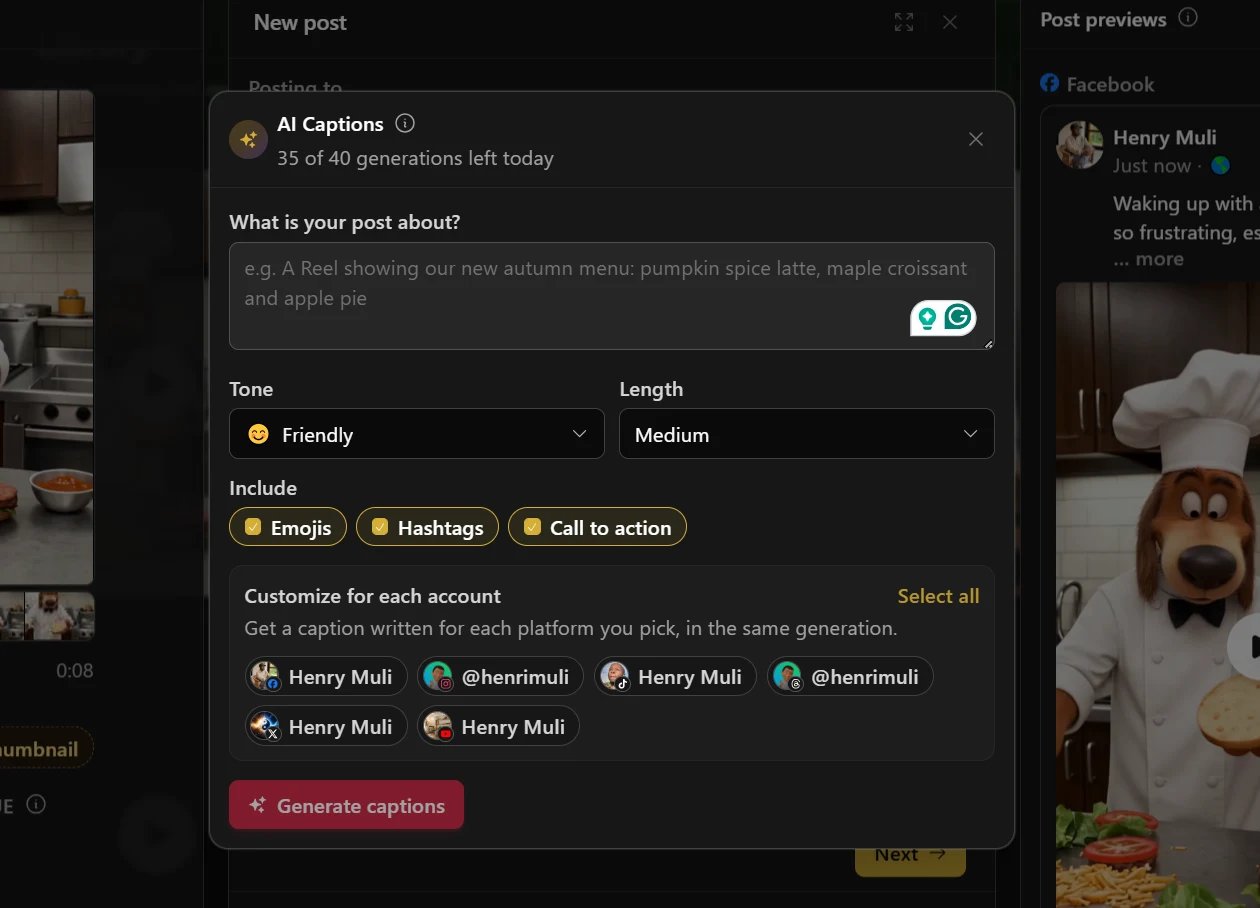
Next to the caption field, click the glowing AI Captions pill. This opens the AI Captions panel.
Generating captions
1
Describe your post
In What is your post about?, describe the content in a sentence or two — for example, “A Reel showing our new autumn menu: pumpkin spice latte, maple croissant and apple pie.” A short, specific description gives better results than a single word.
2
Set the tone and length
Choose a Tone (Friendly, Funny, Inspirational, Professional, Bold, or Educational) and a Length (short, medium, or long) for the generated captions.
3
Choose what to include
Under Include, toggle Emojis, Hashtags, and Call to action on or off depending on what you want in the result.
4
Optionally customize per account
Under Customize for each account, click the accounts you want a tailored caption for. Click Select all to choose every connected account at once, or leave none selected if you only want the shared caption.
5
Click Generate captions
Click Generate captions (or Generate new captions if you’ve already generated once). Hivra writes the shared caption and, if you selected any accounts, a custom caption for each of them, in the same request.
Using the results
Caption for all platforms
Under Caption for all platforms, you’ll see three distinct options along with a character count for each. For any option, you can:- Click Copy to copy the text to your clipboard.
- Click Use as caption to drop it straight into the Composer’s shared caption field. The button changes to In caption once applied.
Custom captions per account
Under Custom captions per account, each account you selected gets its own card showing the generated caption (and, for YouTube, a Title and Description) with a character count against that platform’s limit. From each card you can:- Click Apply (or Apply title & description for YouTube) to put that caption — and title, for YouTube — into that account’s custom caption. The button changes to Applied.
- Click Apply all at the top of the section to apply every generated account caption at once.
- Click Regenerate to write a new version for just that one account, without regenerating everything else.
Daily generation limits
Every plan includes AI Captions, but the number of generations per day depends on your plan:Clicking Generate captions uses one generation, no matter how many accounts you customized in that request. Clicking Regenerate on a single account also uses one generation. Your count resets at midnight UTC. If a generation fails on Hivra’s side, it is not counted against your limit.
Troubleshooting
You've used all your AI generations for today
You've used all your AI generations for today
You’ve reached your plan’s daily limit. Wait for the reset at midnight UTC, or upgrade your plan for more generations per day — see Plans and pricing.
Our AI is busy right now
Our AI is busy right now
Hivra’s AI service is temporarily overloaded and asks you to try again in a minute. This generation was not counted against your daily limit, so you can try again shortly without losing a generation.
We couldn't generate captions for that
We couldn't generate captions for that
This can happen if the description is too vague, too short, or triggers Hivra’s content safety rules. Rewrite the description with more specific, concrete details about your post and try again.
A regenerated account caption didn't come back
A regenerated account caption didn't come back
Occasionally a single account’s regeneration doesn’t return usable text — Hivra shows a message naming that account and lets you click Regenerate again. Other accounts’ results are not affected.
The applied caption is too long for a platform
The applied caption is too long for a platform
AI Captions writes each account’s caption to fit that platform’s character limit before it’s ever applied, so this shouldn’t happen. If you edit an applied caption afterward and it grows past the limit, the Composer’s normal character count and validation will flag it, the same as if you’d typed it yourself.